
Appearance
History Viewer
The history viewer answers the question every cataloguer asks sooner or later: what happened to this record, and who did it? Every time an entity is saved, Elody keeps a snapshot of it. The history viewer puts two of those snapshots side by side and marks what changed between them: edited fields, relations that were added or removed, and related entities that were renamed in the meantime.
The viewer is for looking, not for editing. Edit mode is switched off while it is open, and there is no button to restore an older version: to undo a change, open the entity and edit it back.
The screenshots on this page come from a Dutch-language client; the names of the editors have been replaced.
Using the history viewer
Opening it
Entity types that have history show a View history button (Geschiedenis bekijken) in the header of the detail page, next to the edit and delete buttons.

The button opens the comparison page. The breadcrumb at the top leads back to the entity.
Comparing two versions
The comparison page shows the entity twice, in the same layout as its detail page. On the left is the current version, on the right the last version before it: the page opens on "what changed last".
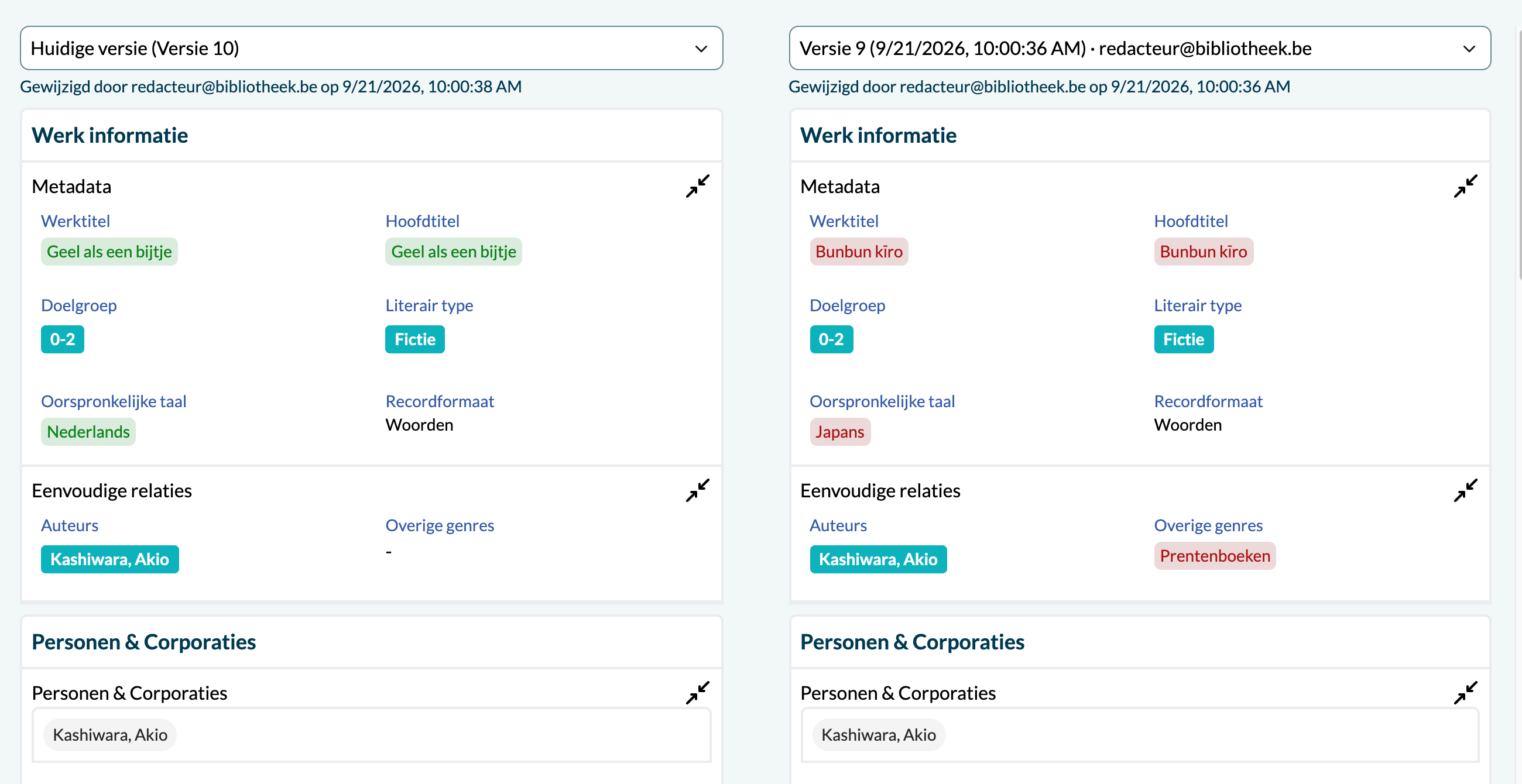
Above each column, a line says who made that version and when. Differences are highlighted on both sides:
- on the newer version, in green: the value as it became;
- on the older version, in red: the value as it was.
Fields without highlighting are the same in both versions. In the example above, the work title and the original language were changed, and the genre Prentenboeken was removed.
Choosing other versions
Each column has a dropdown to pick a version. Versions are numbered from the first save (version 1) upwards and show the date, the time and the editor. The left dropdown also offers the current version.
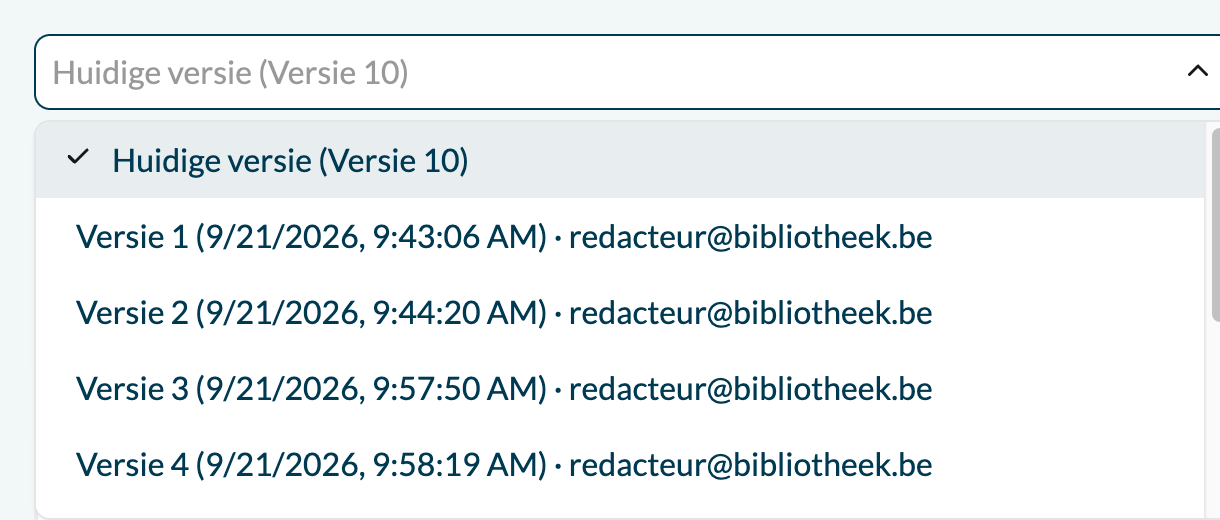
Any two versions can be compared, and in either order: the viewer always works out which of the two is older, so green and red stay on the correct side.
Relations
Relations, such as subjects, genres or linked persons, are shown as chips:
| Chip | Meaning |
|---|---|
| Green | Added in the newer version. |
| Red, struck through | Present in the older version, removed in the newer one. |
| Grey | Present in both versions. |
| Orange | The related entity itself got another name in between. |
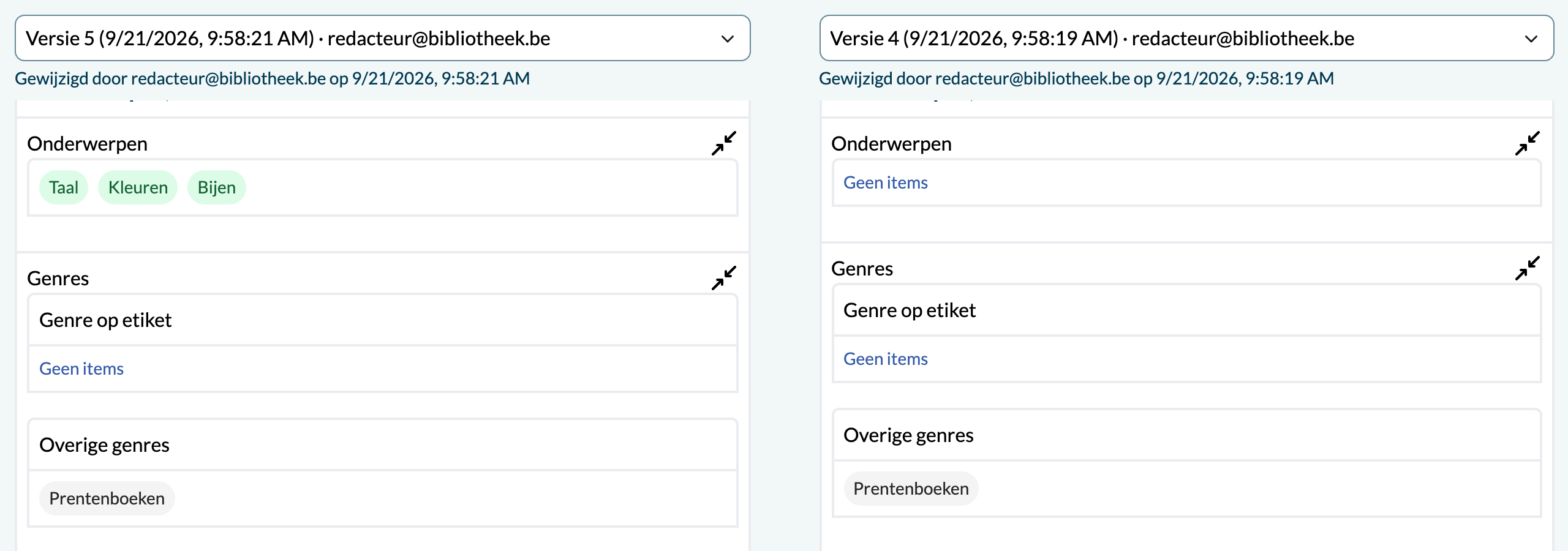
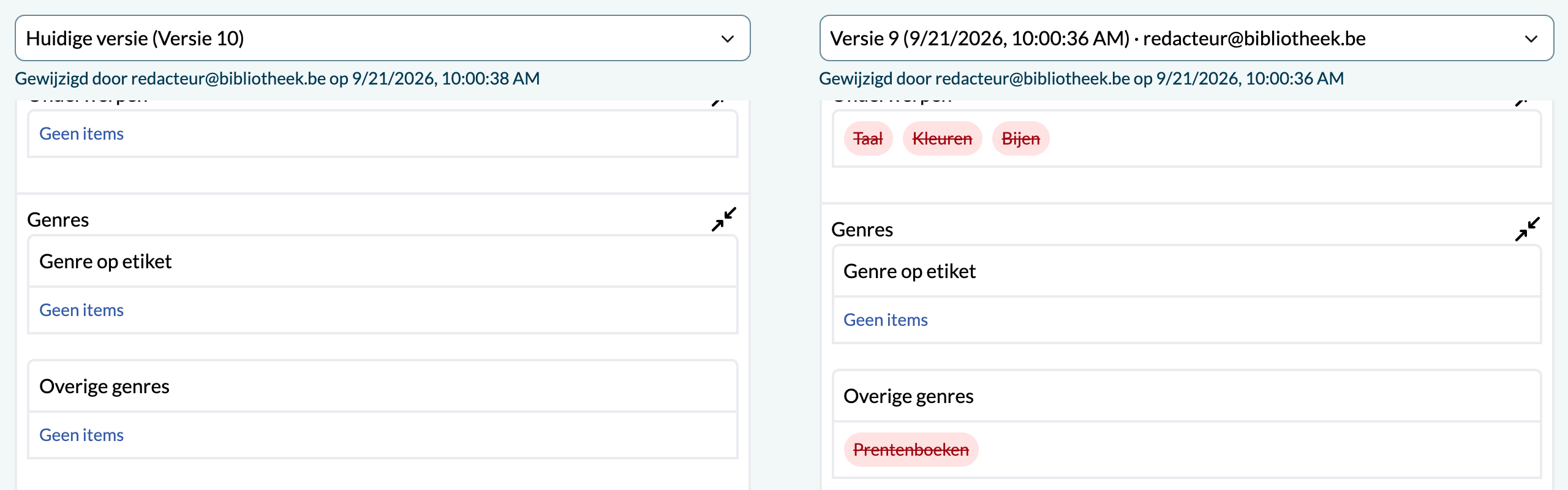
A related entity is shown with the name it had at the time of that version, not with its current name. If a person or subject was renamed between the two versions, the chip is marked in orange: the older side shows the previous name, the newer side the current one. That way the history shows what the record really looked like at the time.
Version overview on the detail page
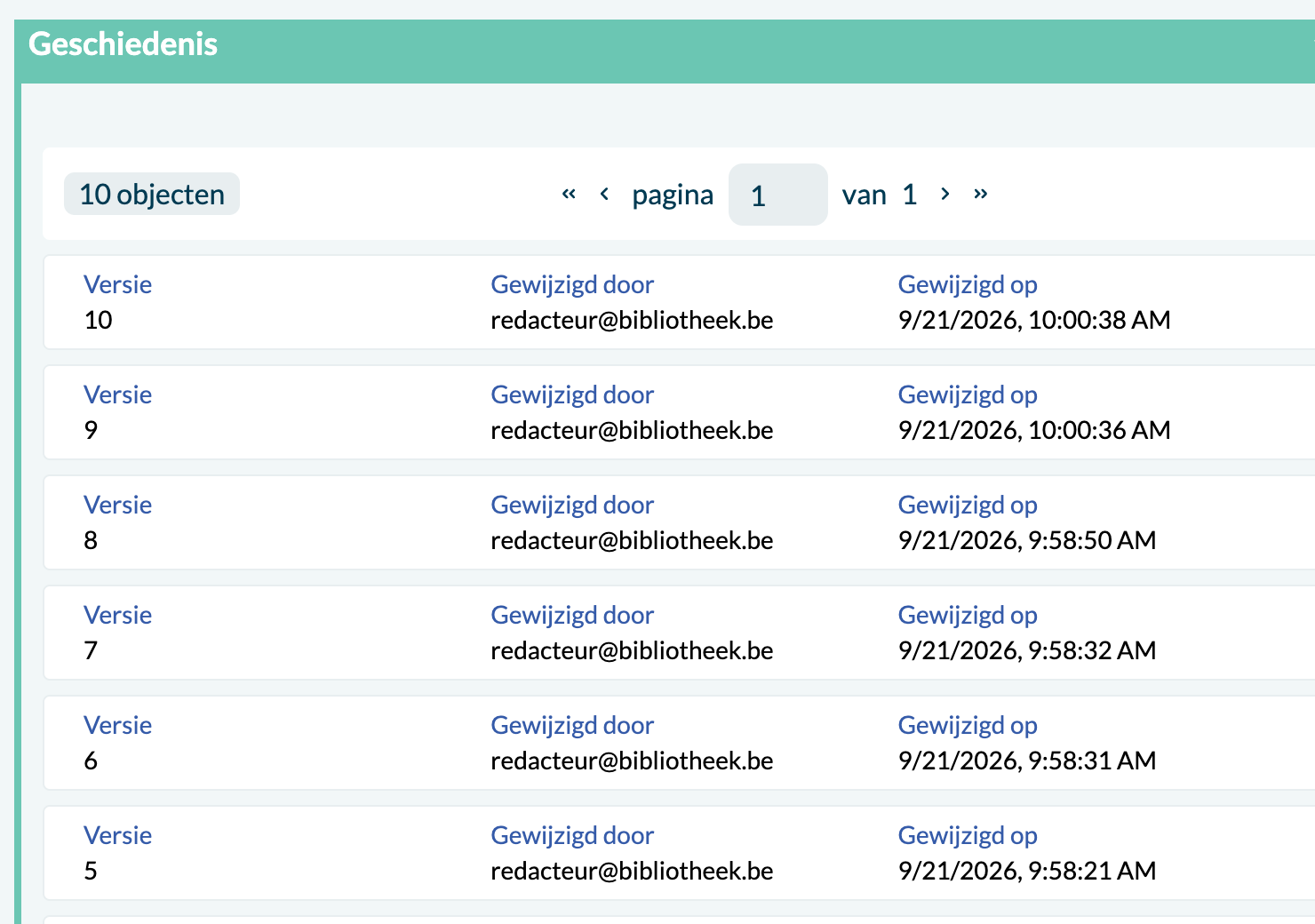
An entity can also show a History panel on its detail page: a list of all versions with the version number, the editor and the date of the change. It gives a quick view of how often and by whom a record was edited. To see what changed, use the View history button.
What is not shown
- Technical fields, such as the identifier and the audit panel, are left out of the comparison.
- Fields that are empty in a version can be hidden, so the comparison only shows what is filled in.
- Long formatted texts (WYSIWYG fields) only show that they changed, not what changed.
- Changes to media files are not part of the history.
- An entity that was not edited since its creation has nothing to compare yet ("There are no earlier versions yet"). Entities that were last saved before history was switched on have no history at all.
How it works
Three parts work together:
- the collection writes a snapshot of a document into a history collection on every change;
- a history service serves those snapshots per entity, and can resolve a snapshot as it was at a given moment;
- baseGraphql queries the history service and exposes the versions to the PWA, which renders the comparison.
The newest snapshot is left out of the version list, because it holds the same content as the current version. When a version or the whole history cannot be loaded, the page says so instead of showing an empty column:
| Situation | Message |
|---|---|
| The entity has no history | This item has no history yet. |
| Only the current version exists | There are no earlier versions yet. |
| The version list cannot be loaded | The history could not be loaded. Please try again later. |
| One version cannot be loaded | This version could not be loaded. (in that column) |
Enabling it for a client
1. Run the history service
The GraphQL service needs the URL of the history service in HISTORY_SERVICE_URL, read into the app config as api.historyServiceUrl:
ts
api: {
  historyServiceUrl: process.env.HISTORY_SERVICE_URL || "http://history-service:5000",
},Without a URL no history datasource is registered. The page then does not fail: it shows "This item has no history yet".
On the collection side, every object configuration whose entities need history declares a collection_history collection in its crud(), and writes snapshots into it on create and update. Add an index on id + audit.updated.at to that collection, since every lookup filters on the entity id and sorts on the change date.
2. Register the route
The button only appears when the client declares the HistoryComparison route:
ts
{
  path: "/:type/:id/history",
  name: "HistoryComparison",
  component: "HistoryComparison",
  meta: {
    title: "history.title",
    breadcrumbs: [
      { current: true, title: "history.title" },
      { entity: true, routeName: RouteNames.SingleEntity },
    ],
  },
},The breadcrumbs meta gives the page a "History" root crumb, followed by a crumb for the entity itself that links back to its detail page.
3. Show the button per entity type
The button is shown when the entity page config of the type sets showHistoryButton: true and the route above exists. To enable it for every type and opt a few out:
ts
export const entityPageConfig = Object.fromEntries(
  Object.values(Entitytyping).map((type) => [
    type,
    { showHistoryButton: true, ...entityTypeConfig[type] },
  ]),
);A type that should not show history sets showHistoryButton: false.
4. Add the history queries
The PWA loads two client queries, GetEntityHistoryVersions and GetEntityHistoryVersionDetail. They wrap the baseGraphql queries of the same name; the detail query selects the client's full entity fragment so the historical version renders with the same form as the live entity:
graphql
query GetEntityHistoryVersions($id: String!, $type: String!) {
  EntityHistoryVersions(id: $id, type: $type) {
    versionId
    documentVersion
    timestamp
    editedBy
  }
}

query GetEntityHistoryVersionDetail($id: String!, $type: String!, $versionId: String!) {
  EntityHistoryVersionDetail(id: $id, type: $type, versionId: $versionId) {
    ...fullEntity
  }
}When a client does not define them, the viewer has nothing to load.
5. Optional: the version list panel
Spread the entityHistoryVersionList fragment from baseGraphql in the elements of an entity type's column:
graphql
elements {
  ...
  ...entityHistoryVersionList
}The fragment declares an entityListElement with the label panel-labels.history, backed by GetEntityHistoryVersionList. It carries hideInHistory(input: true) itself, so the list does not show up inside the comparison page.
6. Hide elements from the comparison
Some panels make no sense in a comparison, such as an audit panel that would differ on every version. Mark them with hideInHistory, available on both windowElement and entityListElement:
graphql
audit: windowElement {
  label(input: "panel-labels.audit-panel")
  hideInHistory(input: true)
  ...
}To hide fields that are empty in a version, set customization.hideEmptyFields: true in the app config.
GraphQL API
| Query | Returns | Purpose |
|---|---|---|
EntityHistoryVersions | [EntityHistoryVersion!]! | All versions of an entity, oldest first: versionId, documentVersion, timestamp, editedBy. |
EntityHistoryVersionDetail | Entity | The entity as it was at versionId. |
EntityHistoryVersionList | HistoryVersionResults! | Versions as list rows (newest first), for the version list panel. |
The versionId is the timestamp of the change. The detail is resolved by the history service as the snapshot at that moment.
In a historical version, every relation keeps the id of the live related entity in key and gets the id of the historical snapshot in historyKey. RelationLabelsForIds accepts these historyKeys, so chips resolve to the name the related entity had at that time.
Breaking change
RelationLabelsForIds now takes types: [String!]! instead of type. Client queries that call it must be updated. All ids in one call are looked up in the collection of the first type.
Translations
The viewer uses the history.* keys and panel-labels.history, which ship with the base translations (English and Dutch, most also Arabic): view-history, title, version-label, version-label-undated, current-version, current-version-number, select-version, edited-by, renamed, no-history, no-previous-versions, versions-load-error, version-load-error, version and no-items. A client can override them like any other key.
Limitations
- The history service fetches all versions of an entity in one call; the list is paged in memory.
- Mediafile history is not shown.
- Repeatable fields are compared by position: a value inserted at the top marks every following row as changed.
- WYSIWYG fields only show that they changed, not what changed.
- There is no "show only changes" toggle yet.